

You find a table in documentation or on Wikipedia and need it in a README, a GitHub issue or a spreadsheet. You copy and paste, and the columns collapse, the headers vanish and the merged cells land in the wrong rows.
A rendered table is not plain text. It has structure, and a normal copy does not carry it into Markdown. The free HTML Table to Markdown converter reads the table's HTML and gives you clean Markdown or CSV in your browser, including tables with merged cells. This guide shows how to convert HTML table to Markdown step by step.
Why copying a web table is difficult
Attributes, mostly colspan and rowspan, control a table's layout. A header can span two columns, a category cell can span several rows. When you select the table and paste, the browser copies what you see, not the markup that defines the spans, so the relationships between cells are lost.
Markdown is simpler. A standard GitHub Markdown table has one value per row and column and no merged cells. Any converter has to flatten the grid, so the question is how it does that.
Convert HTML table to Markdown: get the HTML first
Right-click a cell, choose Inspect, select the
<table>element in the tree, then right-click it and choose Copy, then Copy outerHTML.Or take the
<table>from a saved page or from source code.Or paste the whole page. The converter finds every table in it and lets you choose which one to convert.
Paste the HTML into the converter and pick Markdown or CSV.
A worked example with merged cells
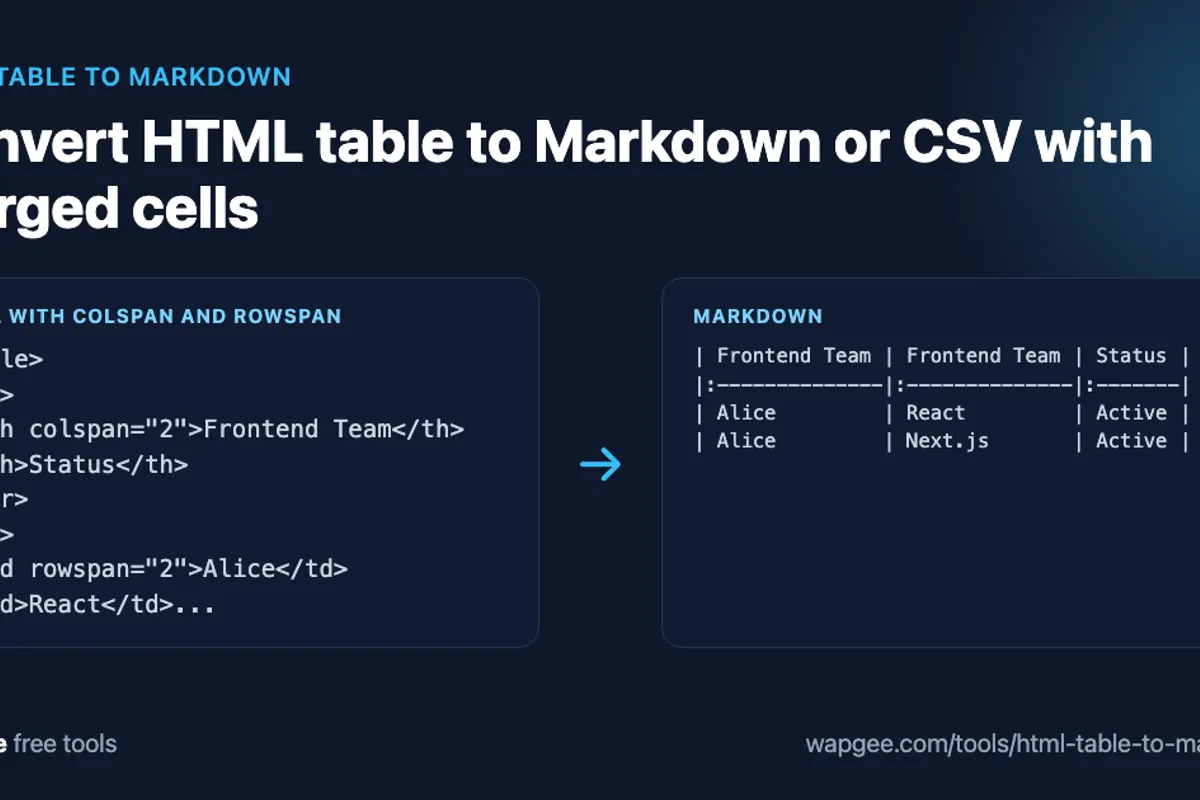
This table has a header spanning two columns and a name spanning two rows:
<table>
  <tr>
    <th colspan="2">Frontend Team</th>
    <th>Status</th>
  </tr>
  <tr>
    <td rowspan="2">Alice</td>
    <td>React</td>
    <td>Active</td>
  </tr>
  <tr>
    <td>Next.js</td>
    <td>Active</td>
  </tr>
</table>
With the default setting, repeat value, the Markdown output is:
| Frontend Team | Frontend Team | Status |
|:--------------|:--------------|:-------|
| Alice         | React         | Active |
| Alice         | Next.js       | Active |
And the CSV output is:
Frontend Team,Frontend Team,Status
Alice,React,Active
Alice,Next.js,Active
The merged cells became a rectangle, and the value is copied into every cell it covered. That is the right choice for data you will sort or filter, because every row stays complete.
If you care more about how the table looked, switch to leave blank. The value is kept once, top left, and the covered cells are empty:
| Frontend Team |         | Status |
|:--------------|:--------|:-------|
| Alice         | React   | Active |
|               | Next.js | Active |
What Markdown tables cannot express
Markdown has no merged cells, which is why the converter expands them. It also has no multi-line cells. When a cell contains a line break, the Markdown output uses <br> inside the cell, and the CSV output keeps the line break inside quotes. Review tables with complex cell content before you commit them.
If the source table has no header row, turn off "First row is header". Markdown requires a header line, so the tool writes an empty one and keeps every source row as data. You can type real headings in afterwards.
Bold, italic, inline code and absolute links in cells are kept as Markdown when "Keep bold, code and links" is on. CSV is always plain text.
A table with no header row
Many tables are just rows of data. Paste this and turn off "First row is header":
<table><tr><td>Name</td><td>Location</td></tr><tr><td>Qamar</td><td>Gilgit, Pakistan</td></tr></table>The Markdown output starts with an empty header line and keeps every row as data:
|       |                  |
|:------|:-----------------|
| Name  | Location         |
| Qamar | Gilgit, Pakistan |
This is valid GitHub Markdown, and it renders as a table with a blank header band. If you want real headings, edit the first line, or leave the toggle on when the first row really is a header.
Markdown or CSV: which output to choose
Pick Markdown when the destination is text that people read in a repository, an issue or a docs site. Pick CSV when the destination is a spreadsheet, a database import or a script. CSV is also the safer route for large tables, because Markdown tables get hard to maintain by hand beyond a handful of columns. If you want to adjust a Markdown table afterwards, the Markdown Table Generator gives you an editable grid.
The converter lists top-level tables only. If a page nests one table inside another, convert the outer table and check the cell that holds the inner one by eye, since a table cannot be represented inside a Markdown or CSV cell. Always read the output once before it goes into production documentation.
CSV gotchas the tool handles
CSV looks simpler than it is. These cases break a naive split(",").
Commas in cells.
Gilgit, Pakistanmust be quoted:Qamar,"Gilgit, Pakistan",Developer.Quotes in cells.
He said "hello"is written as"He said ""hello""".Formula-looking values. A cell starting with
=,@, or+or-before text can be executed as a formula when the file opens in Excel or Sheets. For a cell containing=SUM(A1:A10), the converter writes"'=SUM(A1:A10)", so the spreadsheet shows text instead of running it. Plain signed numbers such as-2are left alone.
The formula protection matters because the table came from a web page you do not control. You can also pick a tab or semicolon delimiter when your cells contain many commas.
When this workflow is useful
README files. Convert HTML table to Markdown to reuse a compatibility table from documentation without retyping rows.
GitHub issues. Browser support, API comparisons and test results read better as a table.
Documentation migrations. Convert existing HTML tables when moving to a Markdown-based docs system.
Spreadsheets. Download the CSV and open it in Excel or import it into Google Sheets.
Test data. Use CSV as the first step, then run it through CSV to JSON to get fixtures.
A quick checklist
To convert HTML table to Markdown reliably, run through this list each time:
Copy the
<table>element, or paste the page and pick the table.Decide how merged cells should behave: repeat the value for data, leave blank for looks.
Say whether the first row is a header.
Choose Markdown or CSV, and a delimiter if you picked CSV.
Read the result once, especially cells with line breaks, links or special characters.
Why in the browser matters
The HTML is parsed with your browser's own DOM parser and converted on your machine. Nothing is sent to a server, logged or stored, so pasting a table from an internal wiki is fine.
FAQ
How do I convert HTML table to Markdown for GitHub?
Paste the table HTML, keep the Markdown output and copy it into your README, issue or pull request. GitHub renders it as a table.
Can I convert a Wikipedia table to Markdown or CSV?
Yes. Copy the table's outerHTML from DevTools, or paste the whole page and pick the table. Then choose Markdown or CSV.
Can I convert HTML table to Markdown without installing anything?
Yes. Everything runs in the browser tab, so there is nothing to install and no script to write.
Does it work with Google Sheets?
Yes. Download the CSV and import it into Sheets, or open it in Excel. Cells with commas or quotes are escaped so columns do not shift.
What if the page has several tables?
Every table found is listed, and you choose which one to convert.
Why is there an empty header row in my Markdown?
GitHub-flavoured Markdown needs a header. If the first row is not a header, the tool writes an empty header line so the table still renders.
Ready to convert HTML table to Markdown for yourself? Open the HTML Table to Markdown converter. To build a table from scratch, use the Markdown Table Generator, and to turn the CSV into JSON, try the CSV to JSON converter. If your end goal is a document, see how to turn Markdown into a PDF.
Comments
No comments yet. Be the first.