

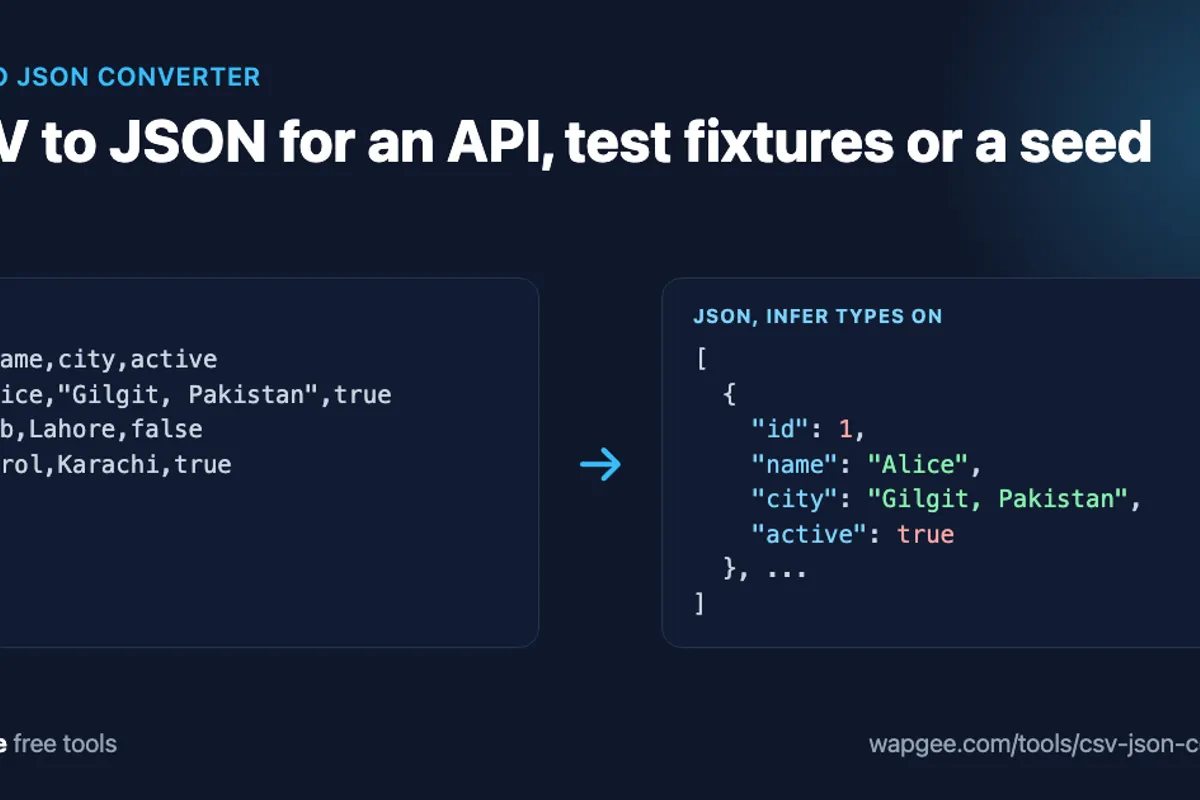
You exported a spreadsheet and now you need JSON. Maybe it is an API request body, seed data for a database, or a fixture file for your tests. The data is in CSV and the destination wants JSON.
You could write a script, but for a one-off job that means reading the file, handling quotes, mapping headers to keys and deciding what is a number. A naive split(",") breaks the first time a cell contains a comma. Use the free CSV to JSON converter instead: paste your CSV, choose your options and copy a JSON array of objects.
Where CSV to JSON shows up
API testing. A teammate sends a spreadsheet of test users or products and the endpoint expects a JSON array.
Seed data. You want realistic rows in a development database without hand-writing them.
Test fixtures. A CSV is easy to edit by hand, your tests read JSON, so you convert once and commit the result.
A worked example
Here is a CSV to JSON example. The CSV has a header row, a quoted cell with a comma, a zip code with a leading zero, and one empty cell:
id,name,city,role,active,zip
1,Alice,"Gilgit, Pakistan",Developer,true,02115
2,Bob,Lahore,Designer,false,
3,Carol,Karachi,Manager,true,10001
With the default options, every value stays a string:
[
  {
    "id": "1",
    "name": "Alice",
    "city": "Gilgit, Pakistan",
    "role": "Developer",
    "active": "true",
    "zip": "02115"
  },
  {
    "id": "2",
    "name": "Bob",
    "city": "Lahore",
    "role": "Designer",
    "active": "false",
    "zip": ""
  },
  {
    "id": "3",
    "name": "Carol",
    "city": "Karachi",
    "role": "Manager",
    "active": "true",
    "zip": "10001"
  }
]
The comma in Gilgit, Pakistan survived because the quoting was respected, and 02115 kept its leading zero. By default the tool changes nothing about your values, which is the safe behaviour for IDs and zip codes.
The options that change the output
Infer types
Turn on Infer types and the tool converts numbers, booleans and empty cells. The same CSV now gives:
[
  {
    "id": 1,
    "name": "Alice",
    "city": "Gilgit, Pakistan",
    "role": "Developer",
    "active": true,
    "zip": "02115"
  },
  {
    "id": 2,
    "name": "Bob",
    "city": "Lahore",
    "role": "Designer",
    "active": false,
    "zip": null
  },
  {
    "id": 3,
    "name": "Carol",
    "city": "Karachi",
    "role": "Manager",
    "active": true,
    "zip": 10001
  }
]
Look at the differences. id is a number, active is a boolean, the empty zip became null, and 10001 became a number. The leading-zero value 02115 stayed a string on purpose, as do integers longer than 15 digits, because JSON numbers cannot hold them faithfully. This is one switch, not separate ones for numbers and booleans, so check the result before posting it to an API that validates types.
First row is header
On by default, the first row becomes the keys. Turn it off and the keys are generated as column_1, column_2 and so on, which is useful for a data dump with no names. Duplicate headers are renamed, for example name and name_2, and the tool tells you when it does.
Array of objects or array of arrays
The default output is an array of objects. Choose the array of arrays shape when you want the rows without keys, which is smaller and suits charting libraries or your own mapping code.
Delimiter
Delimiter detection is automatic and picks up commas, semicolons, tabs and pipes, so semicolon files from European Excel exports work without changes. You can also force one.
Going the other way
The tool also converts JSON to CSV, which helps when you want to inspect an API response in a spreadsheet. Paste an array of objects and you get rows. With the flatten option on, nested objects use dotted column names:
id,name,address.city,tags
1,Alice,Oslo,"[""a"",""b""]"
Arrays are written as JSON text in a single cell rather than split into columns. With flatten off, a nested object is written as JSON inside its cell.
Quoting rules that break naive parsers
Commas. A field with a comma must be wrapped in double quotes.
Quotes. A quote inside a quoted field is escaped by doubling it, so
He said "hello"becomes"He said ""hello""".Newlines. A quoted cell can hold a line break. A naive parser reads it as the end of the row and splits one record into two.
The converter uses a real CSV parser, so all three work, as the CSV specification (RFC 4180) describes. That is the main reason to use it over a one-liner.
Three mistakes to avoid
Sending strings where the API wants numbers. A server that validates types can reject
"true"where it expectstrue. Turn on Infer types, then spot-check a few values.Inferring types on identifiers. A phone number such as
5551234567has no leading zero, so inference turns it into a number. If a column is an identifier rather than a quantity, leave inference off and convert the real numbers in code.Ignoring ragged rows. If a row has more cells than the header, the extra values are collected under an
_extrakey, and the tool shows a notice. Read the notice instead of assuming the file was clean.
A short routine avoids most surprises: convert, scan the notices, look at the first and last objects, and only then commit the JSON.
Using the output
To post the array to an API, pass it as the request body:
const response = await fetch("https://api.example.com/users", {
  method: "POST",
  headers: { "Content-Type": "application/json" },
  body: JSON.stringify(users),
});
To seed a database with Prisma, load the file and use createMany:
import { PrismaClient } from "@prisma/client";
import users from "./users.json";

const prisma = new PrismaClient();

async function main() {
  await prisma.user.createMany({ data: users, skipDuplicates: true });
}

main().finally(() => prisma.$disconnect());
After CSV to JSON conversion you will often need to iterate the data. If you are working with the objects directly, see how to loop through an object in JavaScript. If you want to check the data against a contract first, convert the JSON Schema to Zod and validate each row.
Copy or download
When the conversion finishes you can copy the JSON or download it as a file, and the summary shows how many rows and columns were read. The output is formatted with two-space indentation by default. Switch on minify when the JSON is going into a request body or a single-line config value, where size matters more than readability.
Why in the browser matters
Exports often contain customer or internal data. The converter runs in your browser, and for files over about 1 MB it hands the work to a Web Worker so the tab stays responsive. Nothing is uploaded. The limit is 10 MB per file.
FAQ
Is there a size limit?
Yes, 10 MB. For larger files a script is the better tool.
Is CSV to JSON conversion safe for IDs and zip codes?
Yes, with the defaults. Nothing is converted unless you switch on Infer types, and even then leading zeros and very long numbers stay as strings.
Why are my zip codes strings?
Type inference is off by default, so 02115 stays "02115". Even with inference on, leading zeros and very long IDs stay as strings.
Does it handle semicolon-separated files?
Yes. The delimiter is detected automatically, and you can override it.
Can I turn a copied web table into JSON?
Yes, in two steps. Convert the HTML table to CSV, then paste it here.
Ready for your own CSV to JSON conversion? Open the CSV to JSON converter. To get a CSV from a web page, use the HTML Table to Markdown and CSV converter, and to compare or convert JSON and YAML, try the JSON, YAML and TypeScript converter.
Comments
No comments yet. Be the first.