

You wrote your notes in Markdown. Your README is in Markdown. Then someone asks for a PDF. Maybe a colleague has no Markdown viewer, a course only accepts PDF, or you want a copy that looks the same everywhere.
You can get one in seconds without installing anything. Paste your text into the free Markdown to PDF converter and download the file. No Pandoc, no LaTeX, no command line. This post covers what the tool does, what it does not do, and when you should still reach for something heavier.
Why people want Markdown to PDF
Sharing a README with a manager or client who does not use GitHub.
Handing over notes from Obsidian, Bear or a plain text file.
Submitting a document to a process that only accepts PDF.
The usual routes and what they cost
Pandoc plus LaTeX (see the Pandoc manual) is the most powerful route and produces beautiful typesetting. It is also heavy: Pandoc, a LaTeX distribution that can run to several gigabytes, extra packages for fonts and code, and error messages that are hard to read. For a one-off, it is a lot.
VS Code extensions work for simple documents but can disagree with the preview on code blocks, tables and page breaks, and they tie you to your editor.
Printing from a viewer is quick, but you take whatever the print stylesheet gives you: overflowing code, tables split across pages, images cut off.
Paste Markdown and download
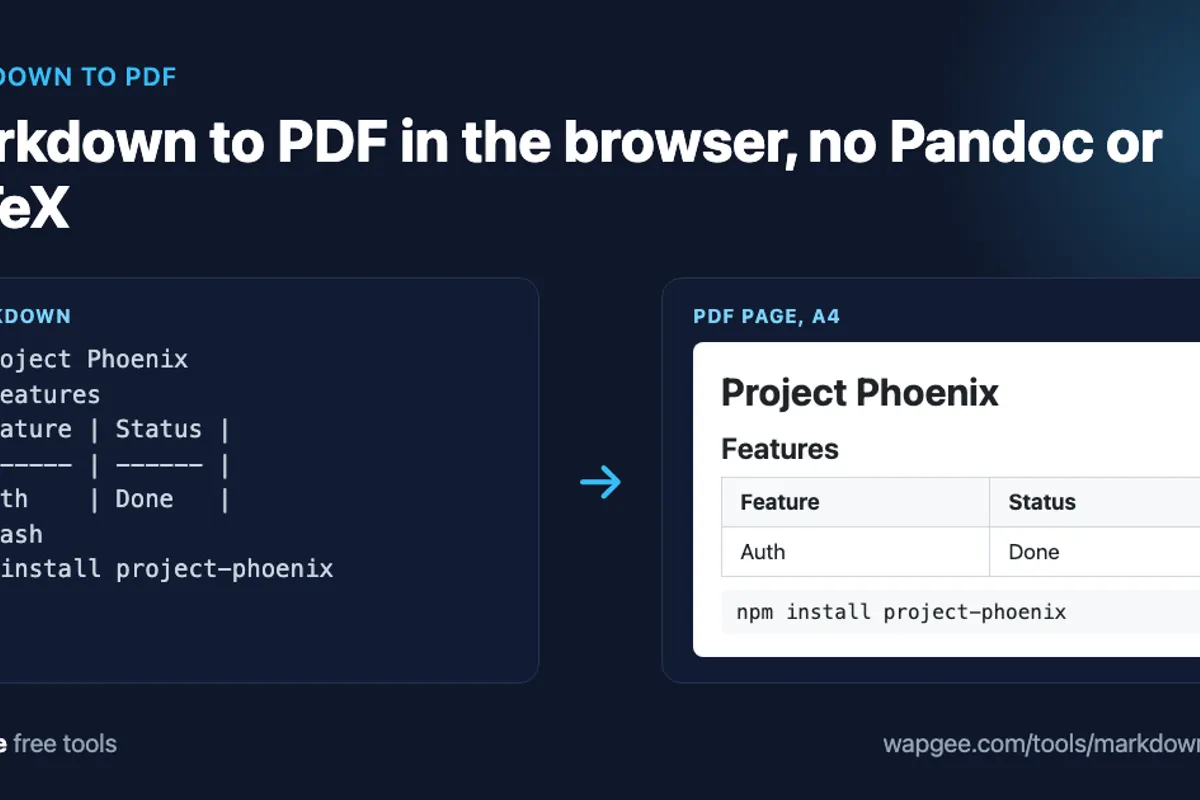
Open the converter, paste your Markdown, choose a page size and click Download PDF. The preview shows you the result. A document like this:
# Project Phoenix

A short summary of the project and its goals.

## Features

| Feature        | Status      | Owner |
| -------------- | ----------- | ----- |
| Authentication | Done        | Alice |
| Dashboard      | In progress | Bob   |
| API            | Planned     | Carol |

## Installation

```bash
npm install project-phoenix
```
gives a Markdown to PDF export with a title, a bordered table and a monospaced code block, laid out on A4 or Letter pages. The file name comes from your first heading, so this one downloads as a Project Phoenix PDF.
What you can control
Page size. A4 or US Letter.
Orientation. Portrait or landscape. Landscape is the fix for wide tables.
GitHub Flavored Markdown. On by default, it adds tables, task lists and strikethrough. It also supports fenced code blocks with a language hint, and auto-linked URLs.
Margins are fixed at 12 mm and the typography is a clean sans-serif body with monospaced code. There are no controls for fonts, custom CSS, headers, footers or page-break markers. That keeps the tool simple, and it is the main limit to know about.
How it works, and why it matters
For Markdown to PDF, the tool converts your Markdown to HTML, draws that into an image in your browser, and slices the image into pages of the size you chose. This has consequences you should know before sending the file to anyone:
The text is not selectable or searchable. Each page is an image, so you cannot copy text out of the PDF or search it.
Links are not clickable and headings do not become bookmarks.
Code is not syntax highlighted. It uses a monospaced style, without language colours.
Page breaks fall where the content falls. A page is cut at a fixed height, so a long code block, table row or paragraph can be split across two pages.
Files are larger than a text-based PDF, because each page is stored as a picture.
For a README you are sending for a quick read, none of this matters. For a contract, a thesis or anything people need to search, copy from or print precisely, use Pandoc, or print to PDF from a viewer that produces text-based output.
Images and long tables
Images are captured if the browser can load them and the host allows it. Hot-linked images from sites that block cross-origin reads can show in the preview but come out blank in the file. For reliable results, use images you control, or embed them in the Markdown as data URIs.
Tables are stretched to the page width and their cell text wraps, so a table with many columns gets cramped and hard to read. Switch to landscape, or remove a column. Long lines in code blocks wrap instead of running off the page. If you are preparing the table itself, the Markdown Table Generator helps you build one, and you can copy an existing web table with the HTML table to Markdown workflow.
When to choose something else
This Markdown to PDF tool is built for the quick, good-enough PDF. Choose another route in these cases:
You need searchable or copyable text, for example a report that people will quote from.
You need working links, a table of contents with page numbers, or bookmarks.
You need precise print layout, headers, footers or page numbers on every page.
You are converting many files on a schedule, where a command-line tool belongs in your build.
For everything else, such as a README for a colleague, class notes or a draft for review, the browser route is faster than installing a typesetting system.
Tips for a clean result
Start the document with a single
#heading. It becomes the file name.Use landscape for wide tables, and check the preview before you download.
Remember that
---renders as a horizontal rule. It is a divider, not a page break, so you cannot force a new page.Keep images within the page width. They are scaled down to fit, never cropped.
Open the downloaded file and scroll through it once, looking for a code block or table row that was split across two pages.
If you do find a split in the wrong place, the quick fix is to add or remove a few lines of text above it so the content shifts, or to change the page size. It is less elegant than a real page-break control, and it is the trade-off for a tool that needs no install.
Why in the browser matters
Documents often hold internal names, client details or draft text. Showdown, html2canvas and jsPDF all run in your browser tab, so the Markdown is not uploaded anywhere. That makes it fine for unpublished drafts, as long as you check the preview before you share the file.
FAQ
Is Markdown to PDF conversion private here?
Yes. Your Markdown never leaves the browser tab, so nothing is uploaded.
Is the PDF text selectable?
No. The pages are images, so the text cannot be selected, copied or searched. Use Pandoc if you need that.
Does it keep syntax highlighting?
No. Code blocks use a monospaced style and a grey background without language-specific colours. The language hint on the fence is accepted but not coloured.
Can I convert several files?
One document at a time. Combine several Markdown files into one before pasting, or use Pandoc for batch jobs.
Can I add a table of contents?
Not automatically. Write one by hand at the top of your Markdown before converting.
How do I get a web page into Markdown first?
Use the HTML to Markdown converter, clean up the result, then export it here.
Ready for Markdown to PDF? Open the Markdown to PDF converter. If you would rather publish the document as a web page, the Markdown to HTML converter gives you clean HTML instead.
Comments
No comments yet. Be the first.